Google Tag Manager: How to Set Up GA4 Event Tracking
Reliable GA4 tracking starts with properly designed events. Google Tag Manager gives you control, but without a structured approach, you'll end up with duplicate data and missing interactions. Here's how to set up a measurement that actually holds up.
Kategorije:
Kazalo vsebine
- Moving to GA4: Event-Based Tracking Changes Everything
- Two Ways to Set Up GA4 Tracking: gtag.js or Google Tag Manager
- Google Tag Manager Explained: What GTM Actually Does
- Why Your GA4 Event Tracking Needs a Clear Structure
- How to Build an Error-Free GA4 Event Setup in GTM
- Best Practices for Reliable GA4 Event Tracking


In digital marketing, proper measurement through Google Tag Manager and Google Analytics 4 is where accurate conversion tracking begins. It sounds obvious, but this is what separates companies that know what delivers from those that are, well, just guessing.
Without solid tracking, there’s no way to tell which channels actually work or where users take meaningful action. When the data is missing or unreliable, every decision based on it carries real risk. The same is true for the budget.
If your measurement doesn’t show you where the value sits, you’re essentially putting money in the wrong places.
So how do you get it right? Let’s walk through it.
Moving to GA4: Event-Based Tracking Changes Everything
The shift to Google Analytics 4 changed event tracking at its core. Universal Analytics ran on sessions. GA4 runs on an event-based model that’s far more flexible but forces you to rethink how you configure everything.
Marketers and analysts couldn’t just copy their old UA setups and drop them into GA4. The platform demanded a complete rebuild. Every tracking structure had to be configured fresh.
When users didn’t migrate on their own, Google did it for them. It copied event structures straight from Universal Analytics, which created problems. Automatic migration regularly produced messy data because the old rigid parameters don’t translate cleanly into GA4’s structure.
Two Ways to Set Up GA4 Tracking: gtag.js or Google Tag Manager
Anyone who’s worked in digital marketing long enough has run into the same question: how do you actually get event tracking up and running on your site? There are two ways to do it, and which one you pick matters more than most people think.
- The first is a direct gtag.js installation, where you configure tracking by dropping code snippets straight into your website’s source code.
- The second, and more advanced option, is Google Tag Manager (GTM), which works as a central hub for managing all your tracking codes without having to dig into the codebase every time something changes.
Both have their place, but this article is all about Google Tag Manager and how to use it to build structured, reliable data collection. For good reason, too. GTM is widely considered the gold standard in modern analytics.
Google Tag Manager Explained: What GTM Actually Does
Google Tag Manager (GTM from here on) is a free tool from Google that acts as a central tag management system. Think of it as a control room for every piece of tracking code on your site. You can read more about what it does in Google’s Tag Manager overview.
It lets you add and update tracking tags on your website or mobile app through a visual interface, which means you don’t need to touch the source code every time you want to track something new. The only exception is the initial setup, where a small GTM snippet needs to be placed in the code to connect your site.
With GTM, you can configure GA4 events in a way that’s flexible, scalable, and tailored to your specific business goals. Instead of developers manually editing code for every tracking change, you manage tags, triggers, and variables inside GTM and keep your event tracking accurate without slowing anyone down.
That said, GTM doesn’t eliminate the need for code entirely. In some cases, custom development is unavoidable.
More advanced tracking setups require a properly configured data layer (dataLayer). This is a structured object in your website’s code that acts as a bridge between your back end and GTM, passing dynamic data like purchase details, product information, and user attributes into your tags.

Why Your GA4 Event Tracking Needs a Clear Structure
When setting up events in GA4, companies tend to rush straight into implementation and skip the strategic planning altogether. Usually, this comes down to pressure to start measuring campaign results as fast as possible, or simply not having enough technical expertise on the team.
The consequences can be expensive. Poorly collected or incomplete data erodes trust in your analytics and makes reporting unreliable. When GA4 event tracking is built on shaky foundations, it can lead to flat-out wrong business decisions.
The benefits of a structured approach might seem obvious. Breaking work into clear, logical steps is something we do across every discipline. But it’s still worth laying out the key reasons why structure directly impacts the quality of your event setup in GA4 and Google Tag Manager.
How Structured GA4 and GTM Implementation Pays Off
When the process is methodical, things tend to work. For event tracking specifically, that means clearly defined steps, consistently collected data, and a much more honest picture of what users are actually doing on your site.
That clarity makes it easier to spot the moments that matter in the user journey and figure out which channels are pulling their weight. Structured measurement in GA4 and GTM gives you genuine control over conversion tracking instead of guesswork dressed up as data.
When your goals and events follow a consistent naming system and are ranked by priority (micro vs macro conversions), you dramatically cut the risk of duplicated or missing data.
It also means your whole team is reading from the same playbook. Marketers, analysts, and developers all interpret the setup the same way, which makes collaboration faster and far less painful.
Clean structure leads to cleaner reporting. Data becomes comparable across campaigns, new events slot in without breaking anything, and there’s less firefighting in the background.
And that’s the real win. Instead of constantly fixing what’s broken, the team gets to spend time on what actually matters: using the data to optimise. Fewer errors, fewer developer call-outs, and an analytics setup that doesn’t fall over every time something changes on the site.
The Biggest GA4 Event Tracking Mistakes and How to Avoid Them
Mistakes in GA4 event and conversion setup happen constantly, and they’re almost never random. The root cause is nearly always the same: moving too fast without a proper plan or any real testing.
What follows is textbook. Events get tracked twice, key interactions fall through the cracks, and your data structure turns into something nobody can make sense of across campaigns. Once the implementation is out of sync, your reports stop being trustworthy, and optimisation becomes guesswork.
Here are the issues we see come up again and again when teams get the approach to advanced GTM event tracking wrong.
Duplicate Events
The single most common mistake is the same event firing multiple times. This happens when triggers in Google Tag Manager are misconfigured, or when the same event is being tracked by both GA4 and a hardcoded script sitting directly on the page.
The result is inflated metrics. Form submissions or clicks look far higher than they actually are, which leads to completely wrong conclusions about how your campaigns are performing.
Inconsistent Event Naming
Without a unified naming system, your event data turns into a mess fast.
Here’s a classic example: one event is named ‘form_submit’, another is called ‘submit_form’. It might seem like a minor detail, but in practice, it makes filtering data and building consistent reports significantly harder. It also creates friction when connecting GA4 with other tools in your stack.
Lost Data
Misconfigured triggers or missing parameters mean that critical interactions never get recorded at all.
A typical scenario: a company tracks form submissions but forgets to add a parameter that distinguishes between the different forms on the site. The data shows submissions coming in, but there’s no way to tell which form is actually generating leads. The numbers exist, but they’re useless for decision-making.
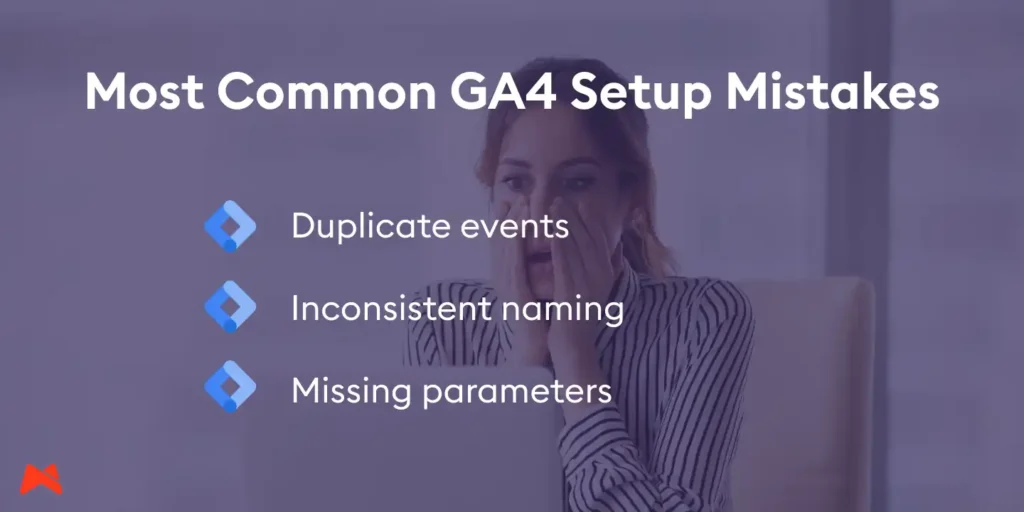
These mistakes might look small on the surface, but in practice, they can seriously damage the quality of your marketing decisions. When the data isn’t reliable, decisions are made on wrong assumptions.
How to Build an Error-Free GA4 Event Setup in GTM
1. Start by Defining Clear Goals for Your GA4 Events
Every GA4 event setup through Google Tag Manager starts in the same place: goals. Not clicks. Not tags. If you don’t know what success means for the business, it doesn’t matter how clean your implementation is. The data won’t tell you anything useful.
Start by mapping your business objectives (revenue, MQL/SQL, cost per acquisition) to behavioural goals on the site, like form submissions, purchases, or CTA clicks. This link is what makes tracking meaningful. You want to measure events that carry real business weight and cut out the noise. That’s how you keep a clear read on performance instead of drowning in data that doesn’t actually help anyone make a decision.
Goals should be specific, measurable, achievable, relevant, and time-bound.
The distinction between macro and micro conversions is essential:
- Macro conversions are your primary business outcomes: purchases, booking requests, and enquiry form submissions. These get marked as ‘conversions’ in GA4, and they deserve the most scrutiny and the most rigorous testing.
- Micro conversions are intent signals and funnel progression markers: visiting a pricing page, downloading a PDF, watching over 50% of a video, and adding something to cart. They’re your best tools for segmentation and optimisation, and often serve as leading indicators that macro conversions are coming.
While you’re defining goals, build in diagnostic metrics too. Things like form error rates, time to first interaction, or what percentage of users actually see your CTA. These let you tell the difference between a UX problem and a traffic problem, which saves a lot of time when something isn’t converting.
Last step: choose a ‘north-star’ metric. This is the single most important number your reporting revolves around. For most B2B companies, that’s something like qualified enquiry submissions.
2. Build a Logical GA4 Event Structure
Once your goals are set, the next move is creating a measurement plan and event taxonomy. Without one, Google Tag Manager quickly becomes a junk drawer of random tags instead of the organised system it’s supposed to be.
In practical terms, this means defining unified rules for how you collect data. How events and parameters get named, what value types you use, and how everything connects across the ecosystem. Get the structure right, and you get comparable data, cleaner analysis, and a lot less head-scratching during implementation.
Set Up a Consistent Event Naming System
In Google Analytics 4, everything is an event. The rigid Category-Action-Label structure from Universal Analytics is gone, which gives you total freedom. That freedom is also the biggest trap you’ll walk into.
Sloppy naming (think ‘Contact_Form’ in one place and ‘contact_form_submit’ in another) fragments your data until aggregating anything becomes painful or flat-out impossible.
The recommended approach is snake_case (lowercase, words separated by underscores) following an object_action logic. The first part of the name is what the user interacted with, the second is what they did (e.g., pdf_download, video_view). This keeps events sorting naturally in your reports and makes the context obvious at a glance.
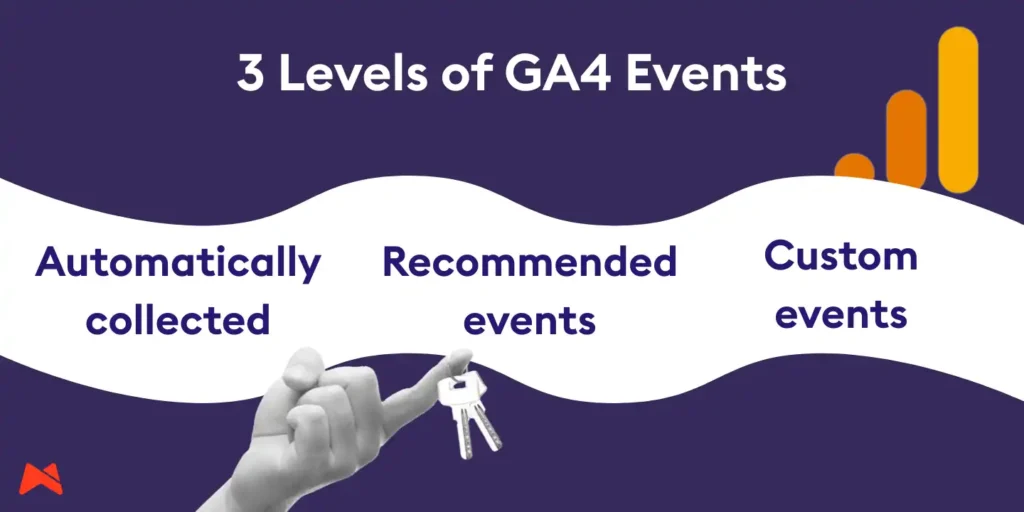
Don’t reinvent the wheel when picking names either. GA4 has three tiers of events, and you should always work through them in this order:
- Automatically collected events cover basics like page_view or scroll. Helpful, but far too broad for measuring specific conversions.
- Recommended events are names Google has pre-defined, like purchase, generate_lead, or view_item. These matter because Google’s machine learning and specialised reports (like e-commerce) are wired directly to them.
- Custom events are your last option. Only use them when an interaction genuinely doesn’t fit the categories above, like a bespoke calculator built into your site.
Add Parameters That Carry Real Analytical Weight
Events are the basic unit of measurement. Parameters are what make them actually useful. A GA4 event without parameters tells you almost nothing, so you need to plan what extra information you’ll need for segmentation and optimisation before you build anything.
- Contextual parameters describe the nature of the interaction. For a file_download event, the critical ones are file_name and file_extension. Without them, you know people are downloading something, but have no idea whether it’s a price list or a product catalogue.
- Strategic parameters tie back to business goals. A solid example is the method parameter on a login event, which tells you whether users prefer signing in via email or through social accounts.
- The items parameter in e-commerce is by far the most complex piece to plan. It’s an array of objects that needs to include product identifiers, prices, categories, and brands. Nail this in the data layer (dataLayer) and you’ve built the foundation for every sales report the business will rely on going forward.
3. Implement GA4 Events Through Google Tag Manager
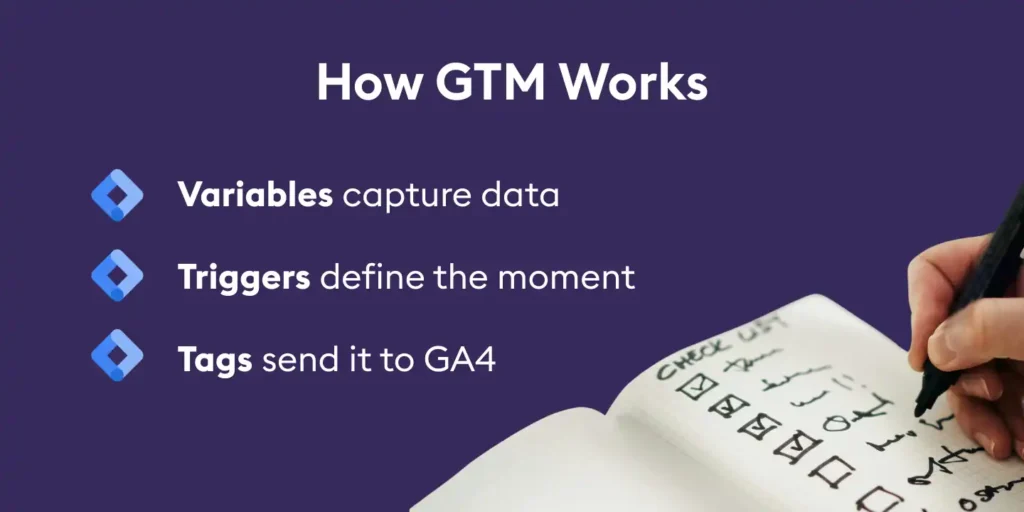
The easiest way to understand how Google Tag Manager works is to think of it as a system that watches your website and translates what users do into data that Google Analytics 4 can read. It’s not just clicking buttons in an interface. It’s the coordinated work of three elements that makes reliable GA4 measurement happen.
It all starts with variables. These are basically empty containers sitting on standby, ready to grab specific pieces of information.
When someone does something on the site, a variable captures the relevant data. The product name a visitor is browsing, for example. In more advanced setups, you lean on the data layer (dataLayer), where your back end hands over the key business data, and GTM variables just store it safely for later use.
Once you’ve got data sitting in those containers, the question becomes: when do you send it? That’s the job of triggers.
Triggers wait for a very specific condition before they fire. Rather than blindly tracking every click on the page (which turns your data into noise almost immediately), the smarter move is custom events. Your website sends a signal when something meaningful actually happens, like a form being submitted and validated successfully. The trigger in GTM catches that signal and decides it’s time to act.
The last piece of the puzzle is the GA4 event tag. Think of it as the delivery package.
This is where everything you’ve prepared comes together. You give the tag its official event name, then attach parameters filled by your dynamic variables. So instead of building a separate tag for every file a user might download, you build one tag that automatically pulls the current file name into the file_name parameter via a variable. One tag, unlimited flexibility.
If you want to go deeper into measurement architecture, have a look at our detailed guide on server-side tagging with Google Tag Manager.
4. Test Your Data Collection in GA4 and GTM
Google Tag Manager comes with a built-in preview mode that lets you verify whether the events you’ve built actually do what they’re supposed to. Testing before you hit publish isn’t optional. It’s the only way to know that your tags fire correctly and that GA4 is capturing data exactly how you planned it.
Start by opening ‘Preview (Tag Assistant)’ in the top right corner of GTM. Check that each interaction triggers the right tags and that GTM is passing the correct parameters with them.
This is where you need to think like a skeptic. Test every scenario you can come up with before you trust anything. Successful form submissions and failed ones. Different CTAs, different page templates, different devices, and different consent states. If you haven’t tried to break it, you haven’t tested it properly.
Then switch over to DebugView in GA4. Confirm that the right events are arriving with the correct parameters and that conversions are being flagged as they should. For e-commerce setups, pay close attention to whether the correct monetary values are coming through with your product data.
These are the issues that keep showing up during testing:
- the event fires on the button click, not on the actual successful submission;
- parameters come through wrong or empty (e.g., form_name isn’t set);
- duplication caused by overlapping triggers or a mix of inline code and GTM;
- consent state is ignored (tracking stops working on ‘denied’ and the team blames GTM for being ‘broken’);
- changes go live without version notes or any rollback plan.
Getting your events set up is not where the work ends. It’s where it actually begins. If you want measurements you can rely on, ongoing monitoring isn’t a nice-to-have. In GA4, you can mark events as conversions and connect them directly to platforms like Google Ads, which gives you sharper campaign optimisation based on real data.
Every time something significant changes on the website, go back and verify that your events still work. Even a minor technical update can quietly break your tracking. Regular checks are the only thing standing between you and data you can’t trust.
Best Practices for Reliable GA4 Event Tracking
Analytics that hold up over time don’t happen by accident. Standardised naming conventions are the first line of defence. They keep things transparent and cut down on confusion, especially when more than one person has their hands in the Google Tag Manager account.
Just as critical is documenting your setup. A living document that maps out every event, parameter, and goal makes onboarding new team members significantly faster. It also prevents knowledge from disappearing when someone leaves the team.
And then there’s the one that most teams skip: regular event verification. Website changes have a nasty habit of silently breaking GTM tags, so checking that everything still works is not something you do once and forget about. While you’re at it, build a clear hierarchy between micro and macro conversions. It gives you a far richer understanding of how users actually move through the funnel.
Setting up GA4 events through GTM takes real time and thought. Cut corners, and mistakes pile up fast, making your data less useful and every analysis that follows harder than it needs to be. But when goals are clear, structure is tight, implementation is consistent, and testing is thorough, you get data you can actually trust when it’s time to optimise.
One more thing worth calling out: Google’s official documentation. Yes, it’s dense. But when you hit a specific problem, the official Google Tag Manager documentation or the Google Analytics 4 help centre is still the most reliable place to find the answer.
Measuring a lot but not getting the answers you need? Might be time for a quick implementation review. Get in touch, we’re always happy to take a look.